How to track recurring subscriptions and bills on iPhone?
Set up planned subscriptions, rent and bills in Expensa. Learn the three-template free limit, how scheduled entries differ from bank charges, and how to avoid Apple Pay duplicates.
Get the appThe short answer: Add each expected subscription or bill as a recurring template in Expensa. The app adds a ledger entry on the dates you choose. It does not discover subscriptions from your bank, confirm that a charge cleared, or cancel a service for you.
This guide covers a planned bill. If you want to compare the ongoing free limits of several iPhone apps first, start with the free expense tracker comparison.
How it works
A recurring transaction is a template. You set it up, for example, as a $15.99 monthly streaming bill, and Expensa creates an entry in your own ledger on the scheduled date. When you next open the app, it catches up on due dates that passed while it was closed. This is an expected amount, which may differ from the final bank charge after a price change, tax or currency conversion.
Frequencies: daily, weekly, monthly, yearly. Works for expenses and income.
Set one up
You don’t create recurring transactions from a separate screen — you create them from the regular Add Transaction flow.
- Tap + on the dashboard to add a transaction.
- Pick the type — Expense (Netflix) or Income (salary).
- Enter the amount and currency. Pick the account that pays it and a category.
- Tap the repeat button in the form. Pick a frequency.
- Set the start date — this is the anchor for every future occurrence. Optionally set an end date.
- Save.
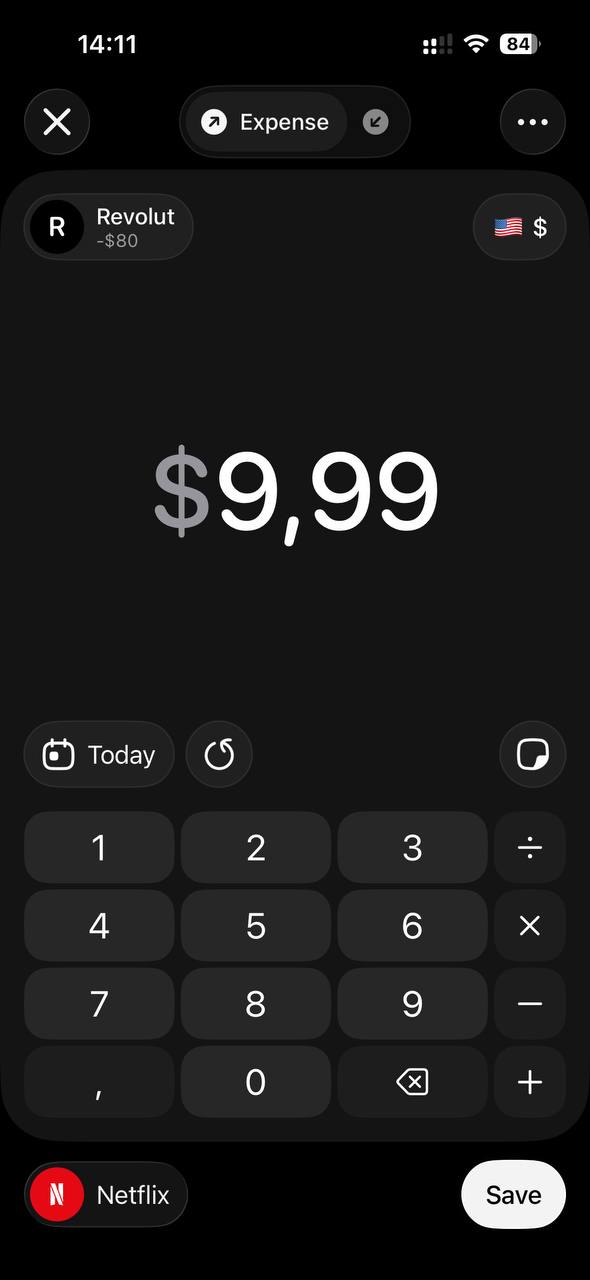
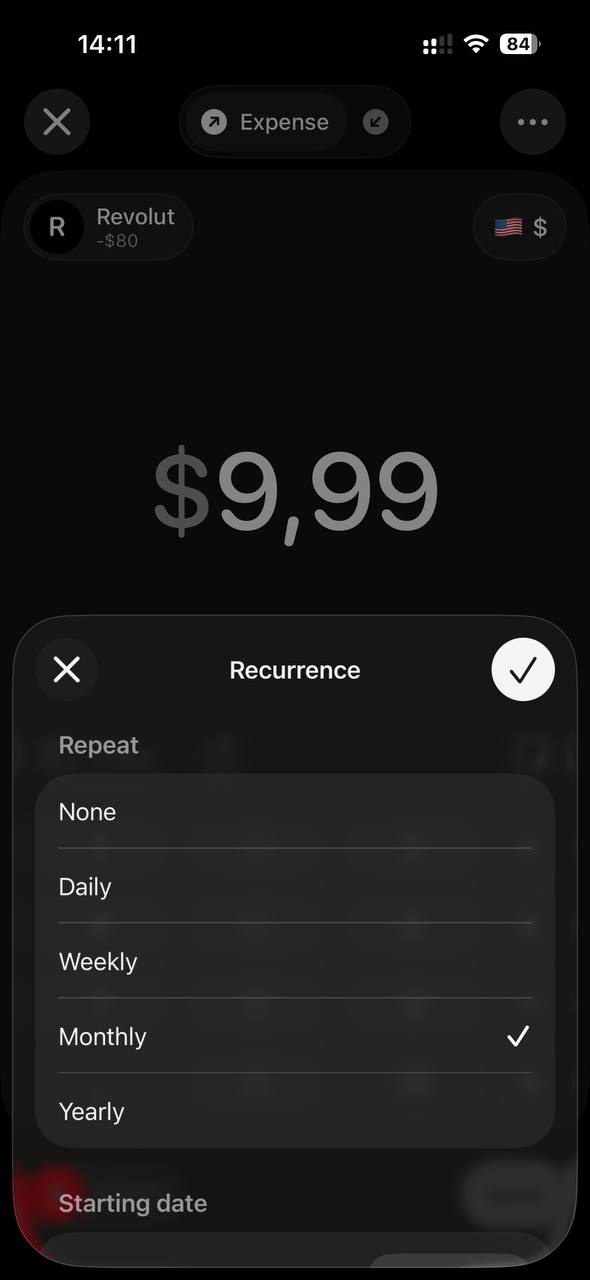
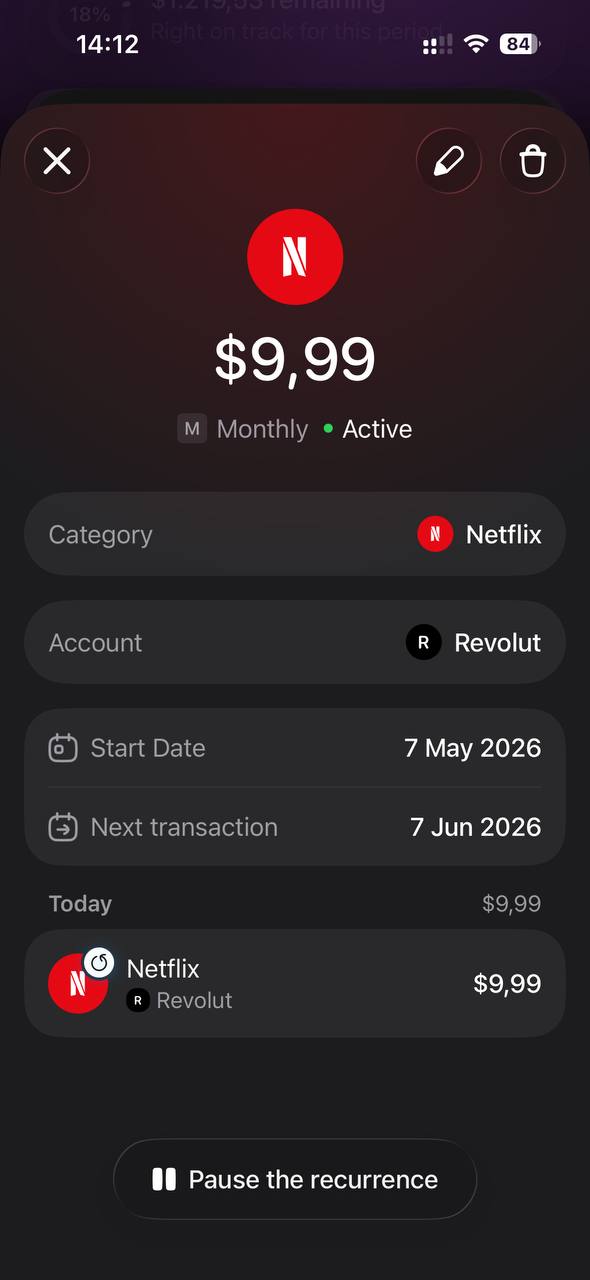
If the start date is today, Expensa creates today’s transaction immediately and schedules the next one. If it’s in the future, the first one fires on that date.
For a monthly bill due on the 12th, set the start date to the next 12th and select monthly. Before saving, confirm the account and currency. If you use one card for the bill but choose a different account in the template, the scheduled entry will appear under the wrong account even though the bank charge is unchanged.
Expensa for iPhone Track spending automatically Apple Pay capture, voice entry and budgets. Free to download on the App Store. Get the appManage them in the Recurring tab
Once a recurring transaction exists, the Recurring tab is where you see it. Two segments: Expenses and Income. The header shows total monthly cost across the segment — double-tap the number to switch between monthly and yearly view.
Each row shows category, account, next run date, and amount. Tap a row for the detail sheet:
- Pause — stop generating new transactions without losing the template. Resume later with one tap.
- Cancel — soft-delete. Future transactions stop; past ones stay in your history.
- Edit — change amount, account, category, frequency, period, notes, or tags.
The “Started on” date is locked once the recurrence has fired at least once — but you can set the next transaction date directly if a charge moved.
A 10-minute subscription audit
- Open two recent bank or card statements. Mark charges that repeat, and check the amount and billing date for each one.
- Add a template only for a charge you still expect. Choose an expense category, such as Subscriptions, and the account you actually use.
- Check the Recurring tab for the next date and monthly total. If a charge is yearly, switch the summary to yearly before comparing it with your statement.
- When the next statement arrives, compare its actual charge with the scheduled entry. Edit the template after a price or date change. If Apple Pay already imported the same purchase, remove the duplicate ledger entry or use only one recording method for that bill.
This gives you a list to review. To stop a paid service, cancel it with the provider; canceling its Expensa template only stops future tracker entries.
Limits
Free plan: 3 active recurring templates. Premium removes that limit. Pausing a template stops future scheduled entries without deleting the template; check your active-template count before adding another on the free plan.
Notes that matter
Multi-currency works as expected. Notion in USD while your account is in EUR? Expensa stores the original amount and the rate at the time the transaction is generated, so reports stay consistent.
Notifications are app-wide. If you want a reminder when something is due, turn on recurrence reminders in Settings → Notifications — applies to all recurring transactions, not per-template.
Catch-up is idempotent. If you don’t open the app for two weeks, the missed transactions are created on launch — no duplicates if one already exists for the same day.
Apple Pay uses a separate recording path. On iOS 27+, Expensa’s new shortcut uses eligible Wallet notifications and can include online or in-app payments when a suitable notification arrives. On iOS 26 and earlier, the Wallet Transaction automation covers supported card taps; it should not be treated as a feed of every online subscription. Follow the iOS 27+ guide or iOS 26 and earlier guide. If both a recurring template and Apple Pay import record one bill, check for a duplicate: they do not verify each other against the bank.
Troubleshooting
Transactions aren’t generating. Open the app. Catch-up runs on launch and during background refresh; if the device hasn’t checked in for a while, opening it triggers the missed runs.
Wrong amount on a future occurrence. Edit the recurring template, not the individual transaction. Future transactions use the new amount; past ones keep the value they were created with.
Charge date moved. Edit the period — if the recurrence has already started, set the next transaction date directly.
Keep reading
View all- 5 Expense Tracker Apps for iPhone Without Bank Linking Compare Expensa, Monefy, Money Manager, Spendee and YNAB for iPhone expense tracking without a bank connection: entry, budgets, sharing and cost.
- Apple Pay in India: Supported Cards, UPI and How to Track Spending Apple Pay launched in India on 30 September 2026. See supported Axis Bank cards, UPI and RuPay limits, setup steps, and how to track spending in INR.
- Set Up Apple Pay Expense Tracking in Expensa on iOS 27 Set up Expensa Wallet Sync on iOS 27 or later: add the shared shortcut, approve its actions, and enable the Wallet notification automation.
- Import a Receipt Screenshot into Expensa with iPhone Back Tap Set up Expensa Scan Receipt in Shortcuts, assign it to iPhone Back Tap, and turn an onscreen receipt into an expense without opening the app.
- Monarch Money vs Rocket Money: Budgeting, Subscriptions and Cost Compare Monarch Money and Rocket Money in 2026 by budget tools, subscription help and cost. See where Expensa fits if you don't want a bank connection.
- Best Free Expense Tracker Apps for iPhone: Features and Limits Compare Dime, Monefy, Spendee, Wallet and Expensa by what stays free: entry, budgets, account limits, Apple Pay tracking and export.
Stop tracking.
Start knowing.
Capture eligible Apple Pay purchases after setup, add expenses by voice and see what remains in your budget.
Download for iPhone