How to automatically track Apple Pay expenses in the Philippines using Expensa?
Apple Pay launched in the Philippines on August 4, 2026. See the launch banks and choose the right Expensa setup for iOS 26 or iOS 27+.
Get the appSetup update, September 29, 2026: The Shortcuts steps below show the iOS 26 and earlier card-transaction automation. On iOS 27 or later, Expensa uses a ready-made Wallet notification shortcut with a different setup. Follow the iOS 27 Apple Pay guide for that version; verify a real Wallet notification from your card before relying on automatic capture.
Apple Pay is finally live in the Philippines. Since August 4, 2026, Filipino iPhone users can add their cards to Apple Wallet and tap to pay in stores, in apps, and on the web — no more reaching for a physical card at Jollibee or 7-Eleven.
Which also means a familiar problem: contactless payments are so effortless that by Friday you may not know where the week’s money went. This guide covers launch support in the Philippines and how to record eligible new Apple Pay purchases in Expensa. The setup now differs between iOS 26 and iOS 27+.
Which banks support Apple Pay in the Philippines?
At launch, four banks let you add debit and credit cards to Apple Wallet:
- UnionBank
- GoTyme Bank
- Metrobank
- Chinabank
BPI has completed card tokenization and is expected to activate support shortly after launch. BDO, Security Bank, and other major banks haven’t announced dates yet — more issuers typically join in the months after an Apple Pay launch, as happened in every other market.
Adding a card takes a minute: open Wallet → ”+” → Debit or Credit Card, scan or enter your card, and verify via SMS or a phone call from your bank.
Where does Apple Pay work in the Philippines?
Anywhere with a contactless terminal — which after years of QR Ph and tap-enabled cards is most of Metro Manila retail. Confirmed working at launch:
- In stores: Jollibee, Starbucks, 7-Eleven, Power Mac Center, ZARA, Abenson, Ayala Malls
- In apps and online: foodpanda, Shopee, Rustan’s — any checkout that shows the Apple Pay button
You pay by double-clicking the side button and holding your iPhone or Apple Watch near the terminal. The card number is never shared with the merchant — Apple Pay uses a device-specific token.
The problem: taps are easy, tracking is not
Every tap is one less receipt, one less cash count — and one more expense you’ll forget by tomorrow. The usual fixes all have catches: bank apps show transactions per-card (good luck if you tap with three cards), statements arrive monthly, and aggregators like Plaid don’t cover Philippine banks at all.
The good news: iOS has a built-in way to fix this, and it works with every launch bank.
- No bank connection needed. The automation runs locally on your iPhone using an official iOS trigger — your bank login never leaves your head.
- It can record new payments soon after Wallet reports them. Check the actual result for your card before relying on it.
- Coverage depends on the Wallet trigger. On iOS 26 and earlier, you select cards for a Transaction automation. On iOS 27+, the Expensa shortcut uses Wallet notifications, which you must enable and verify.
- PHP is fully supported. Set the Philippine peso as your base currency; foreign-currency taps convert at live exchange rates.
What you’ll need
- iPhone with Apple Pay set up
- Expensa installed
- Shortcuts app (built into iOS — no download needed)
iOS 26 and earlier: manual Shortcuts setup
The steps and screenshots in this section show the card-transaction trigger. On iOS 27+, use the Wallet notification shortcut instructions instead.
Step 1: Open the Shortcuts app
Find the Shortcuts app on your iPhone and open it. It comes pre-installed on every iPhone running iOS 13 or later — if you’ve never opened it, it’s probably in the Utilities folder.
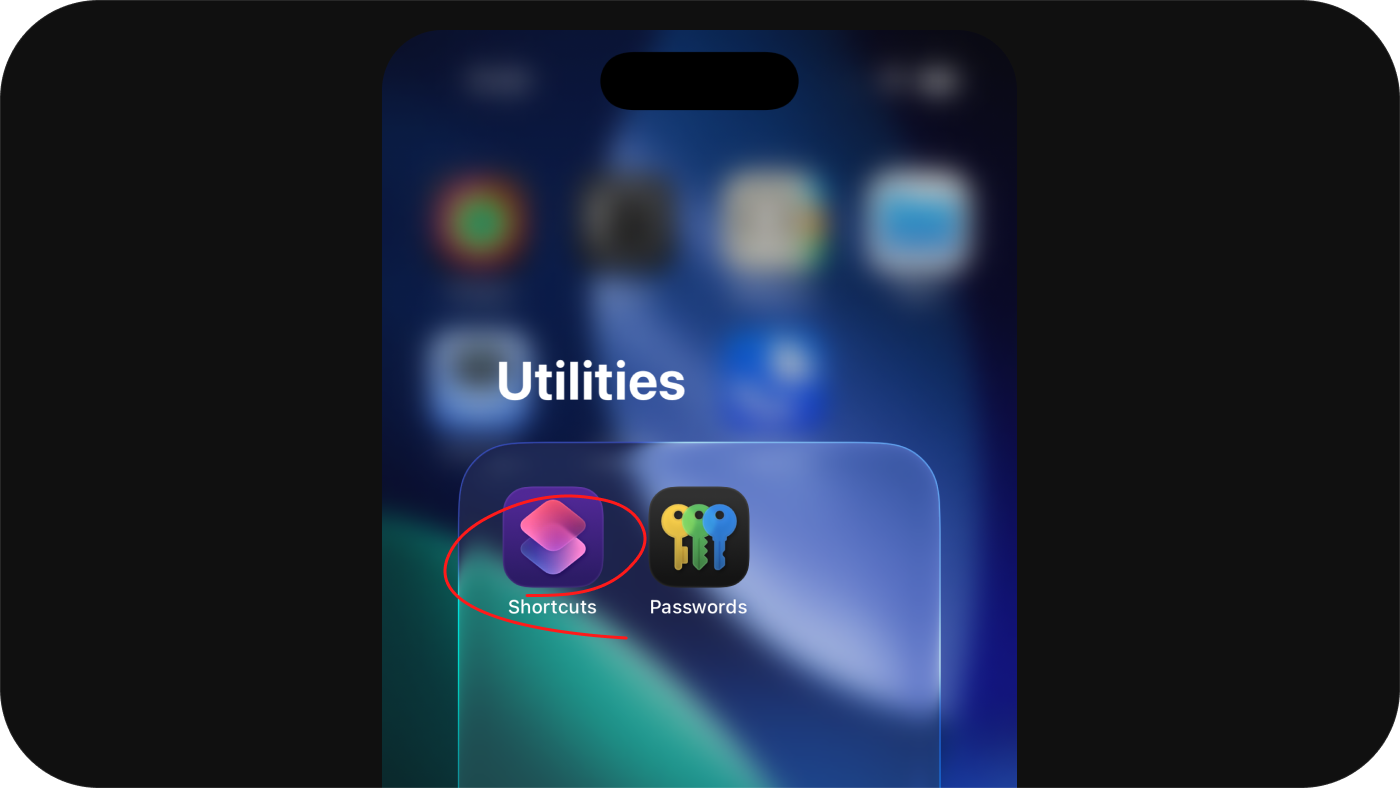
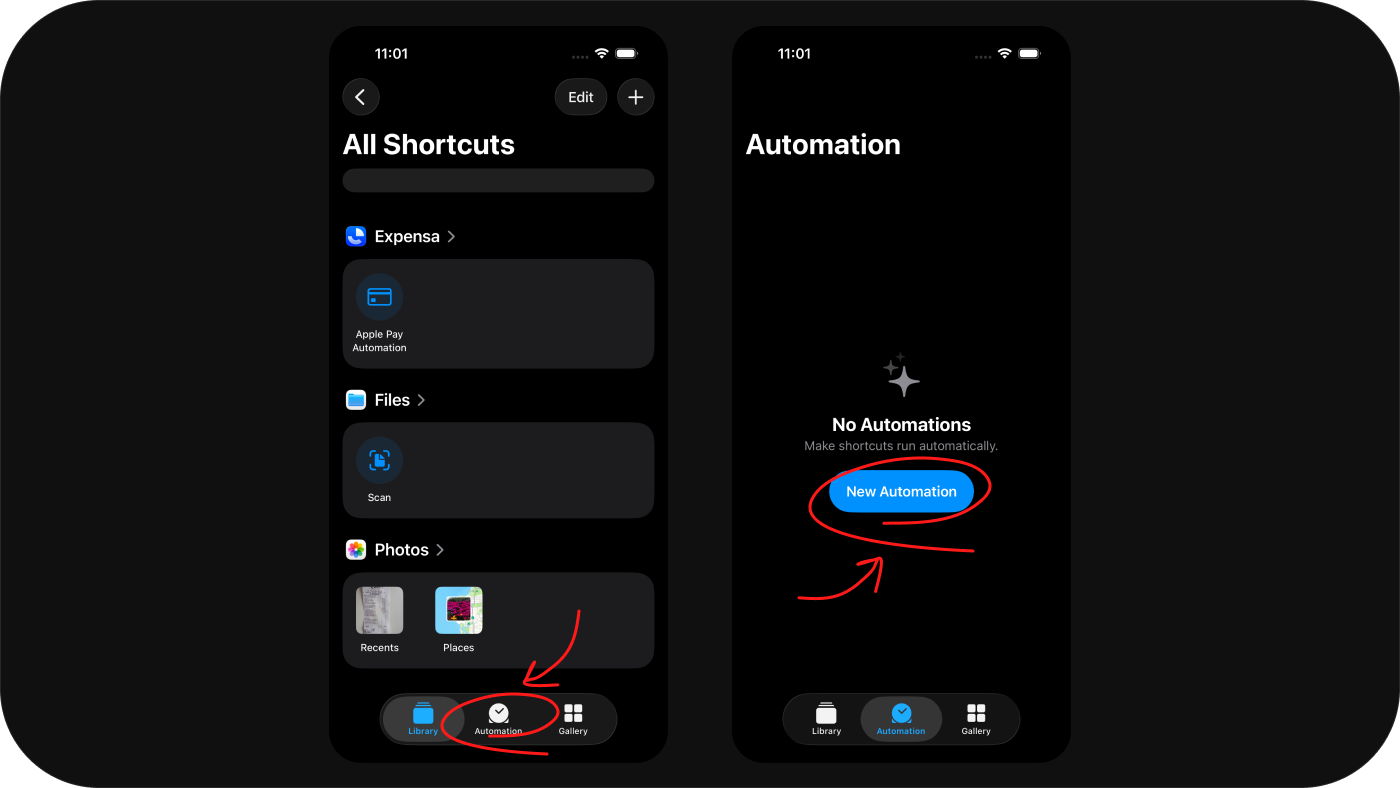
Step 2: Go to the Automation tab and tap “New Automation”
At the bottom of the screen, tap the Automation tab. Then tap the New Automation button.
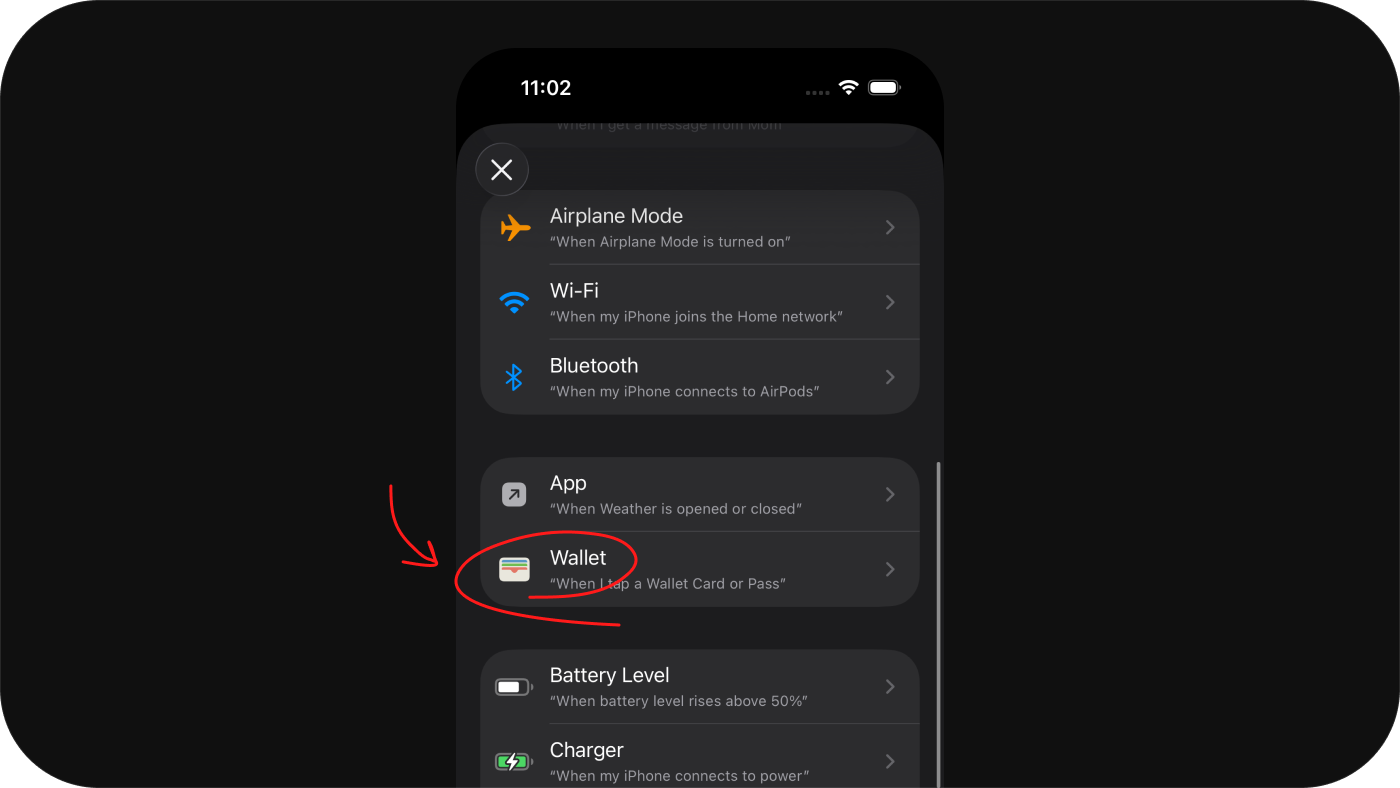
Step 3: Select “Wallet”
Scroll down to find Wallet — specifically the trigger “When I tap a Wallet Card or Pass”. This fires the automation every time you use Apple Pay.
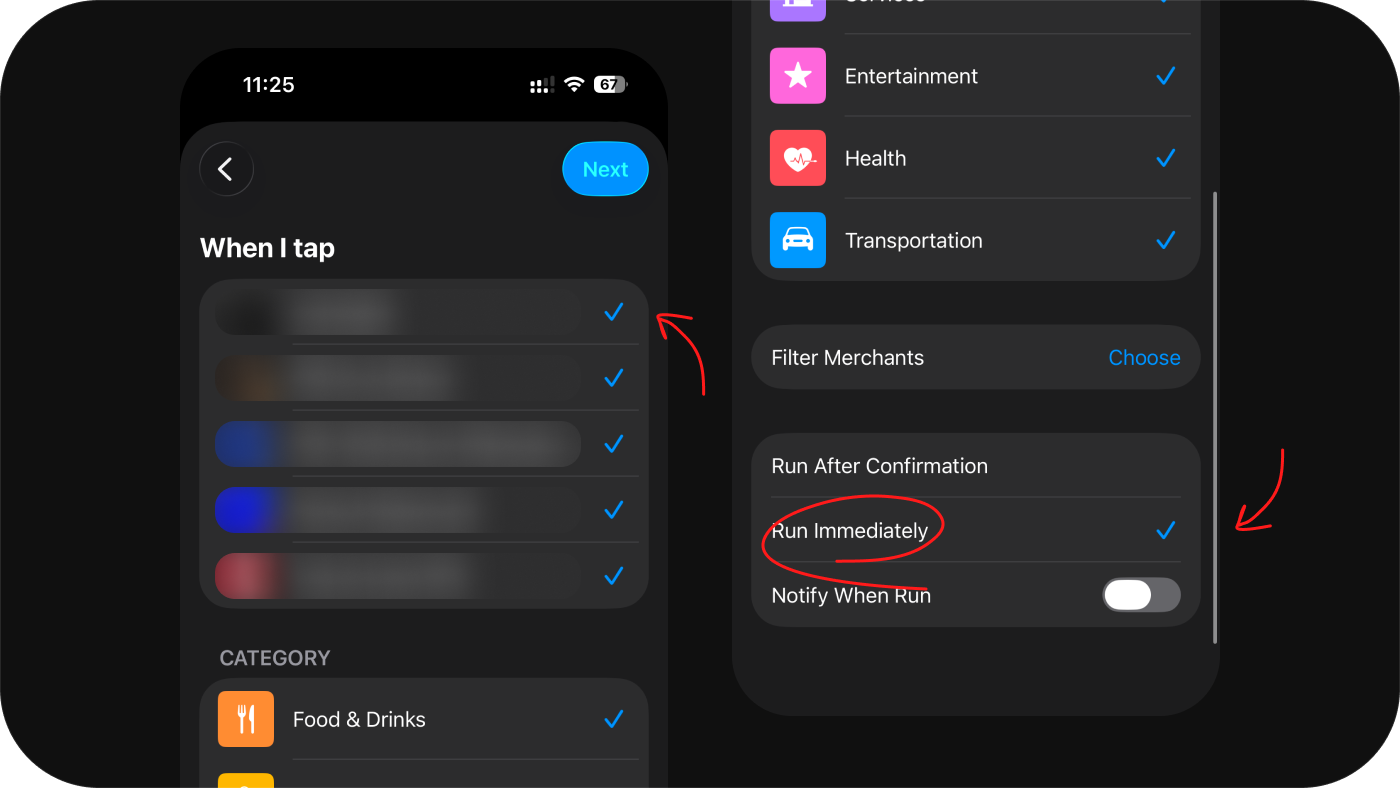
Step 4: Select your cards and set to Run Immediately
Pick the cards you want tracked — your UnionBank debit, Metrobank credit card, GoTyme card, all of them. Then change the run mode to Run Immediately. This is important: if it’s set to “Run After Confirmation”, Shortcuts will ask for your approval every single time you pay, which defeats the whole point.
Step 5: Tap “Create New Shortcut”
When prompted to choose what the automation does, tap Create New Shortcut. This opens the action editor where you’ll add the Expensa action.
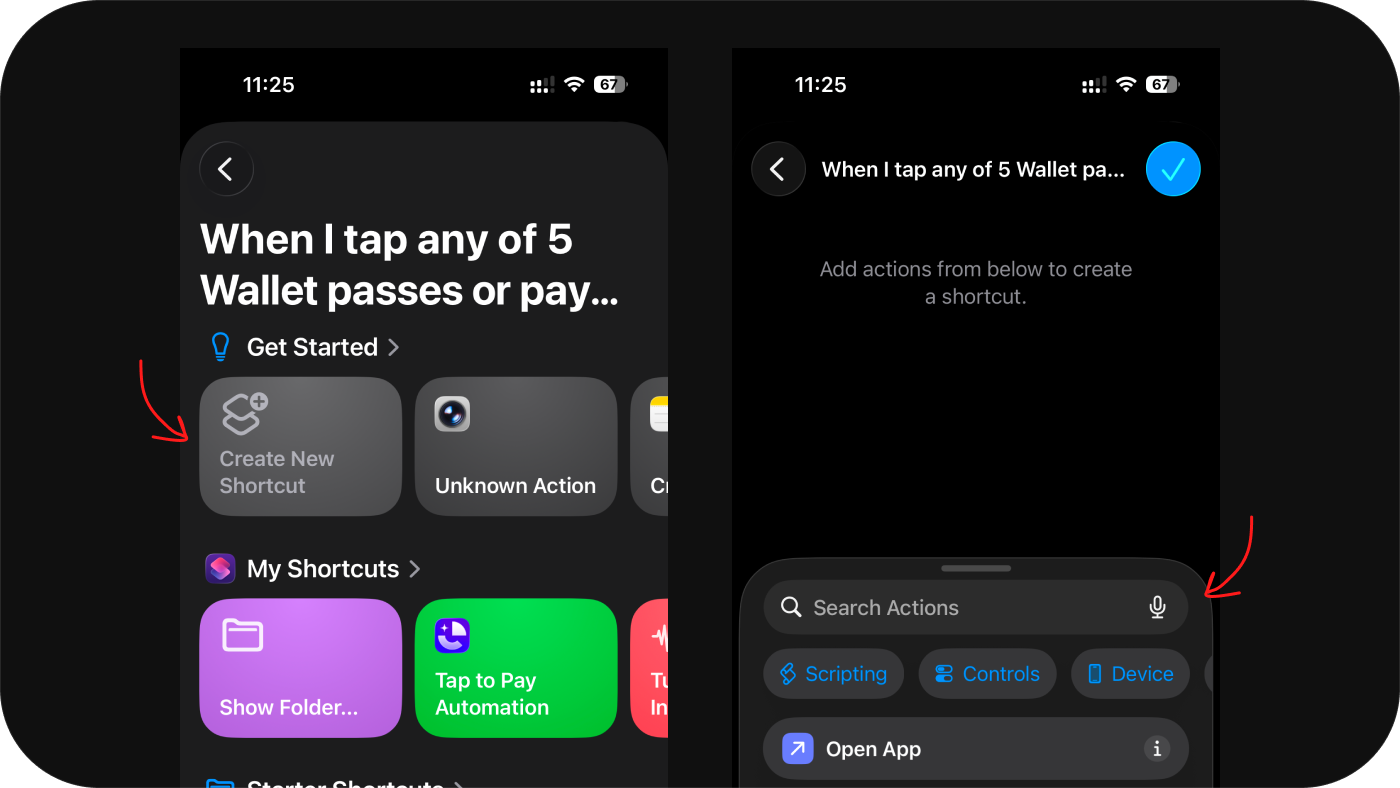
Step 6: Search for and add the Expensa action
In the search bar, type Expensa or Tap to Pay Automation and select it from the results. This is the Expensa action that receives the transaction data.
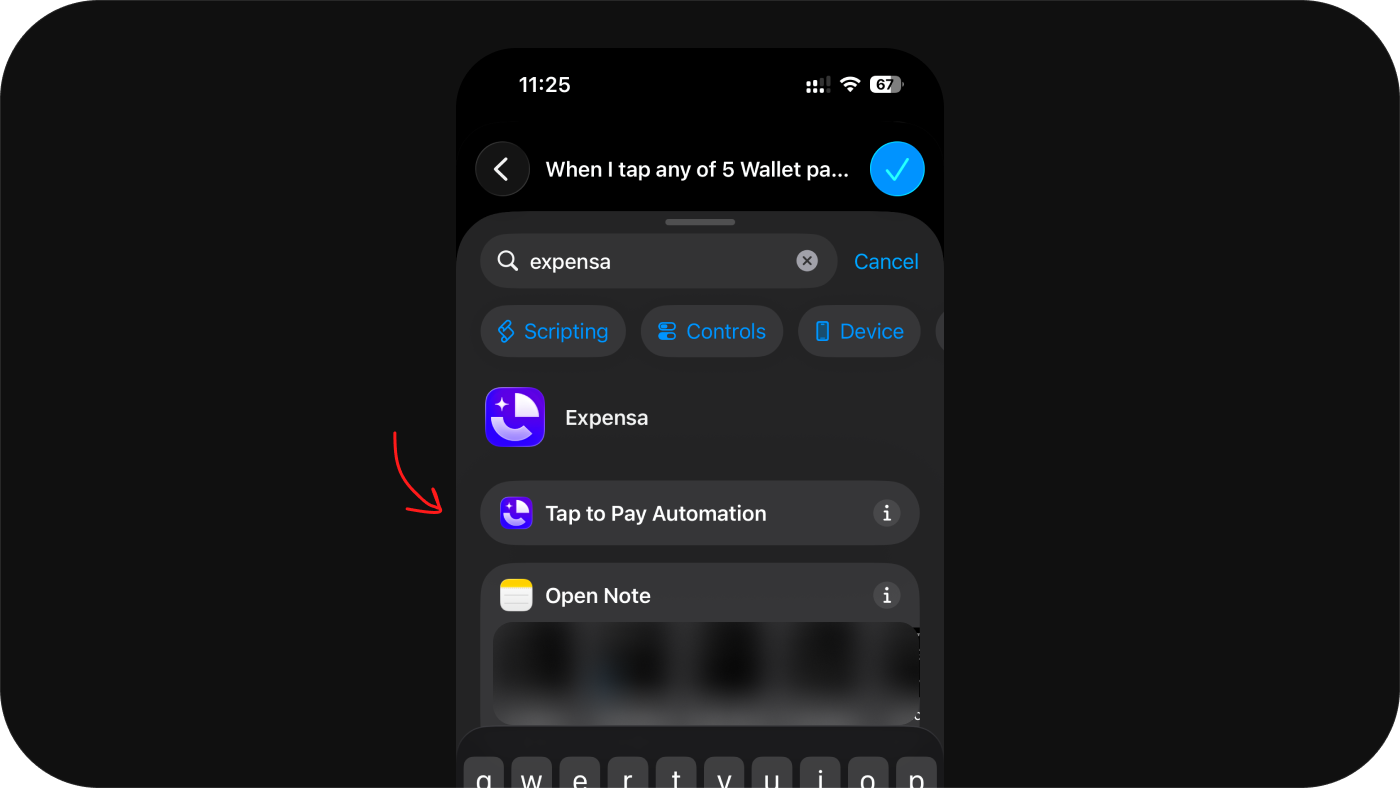
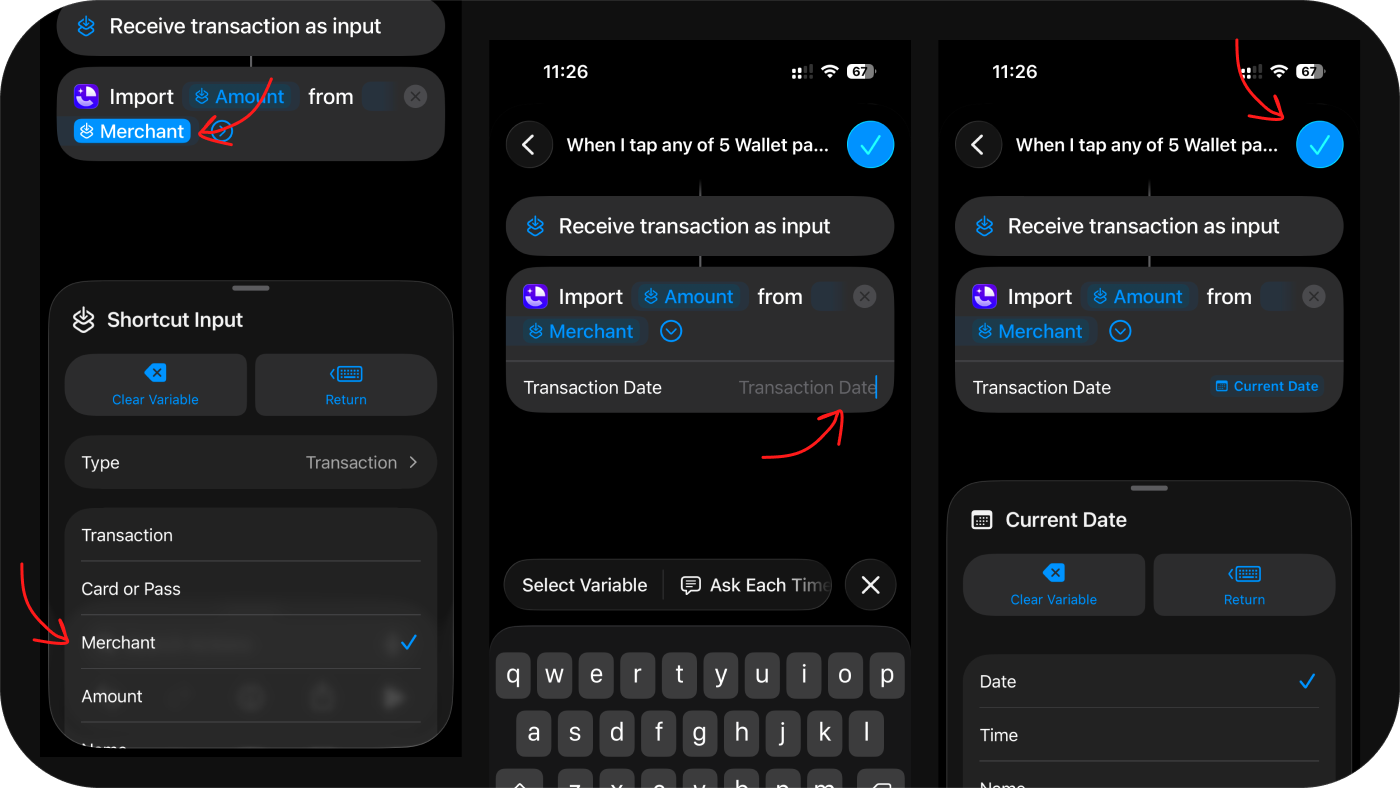
Step 7: Map the transaction fields
Connect the Apple Pay data to the Expensa fields. For each field in the action, tap it → select Variable → then Shortcut Input, and choose the matching field:
- Transaction Amount → Amount
- Merchant Name → Merchant Name
- Transaction Date → Date (optional)
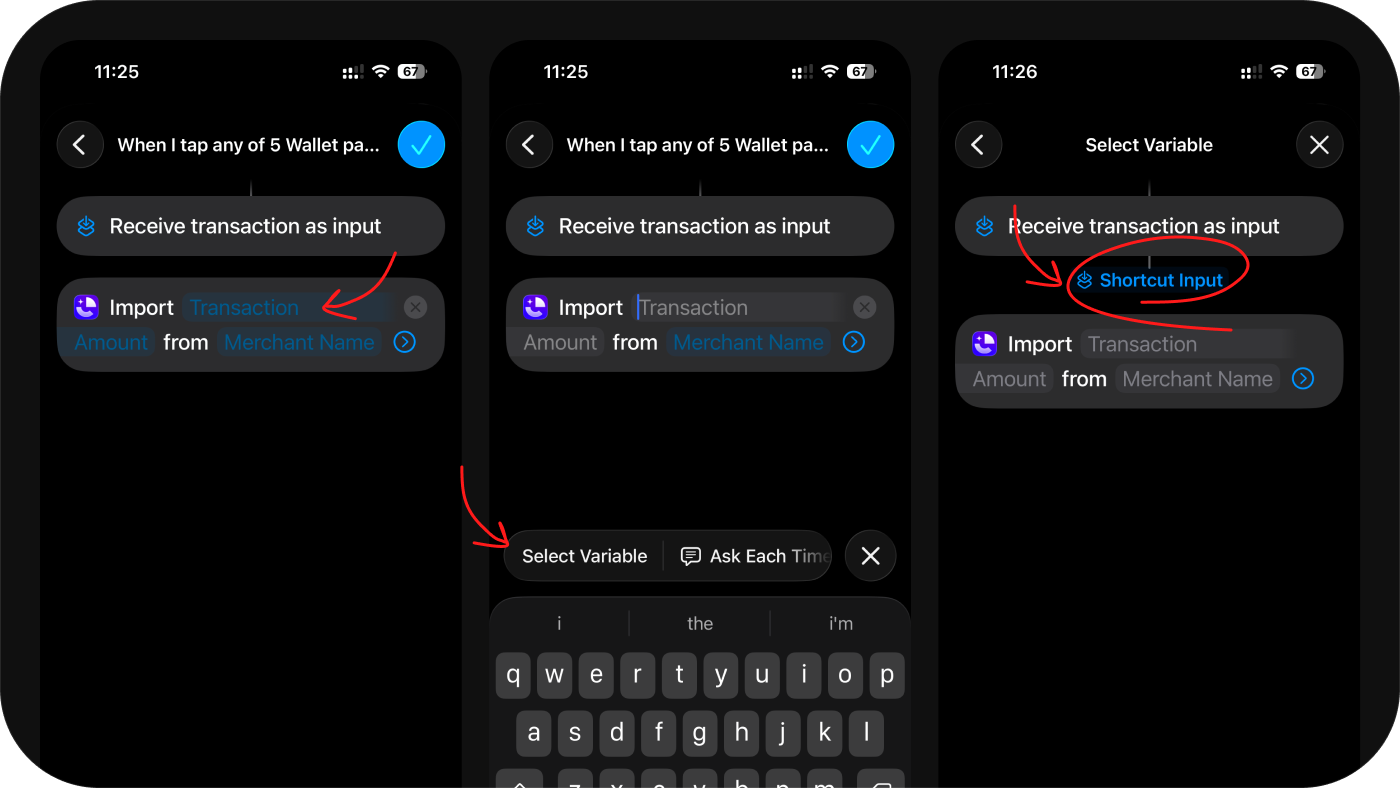
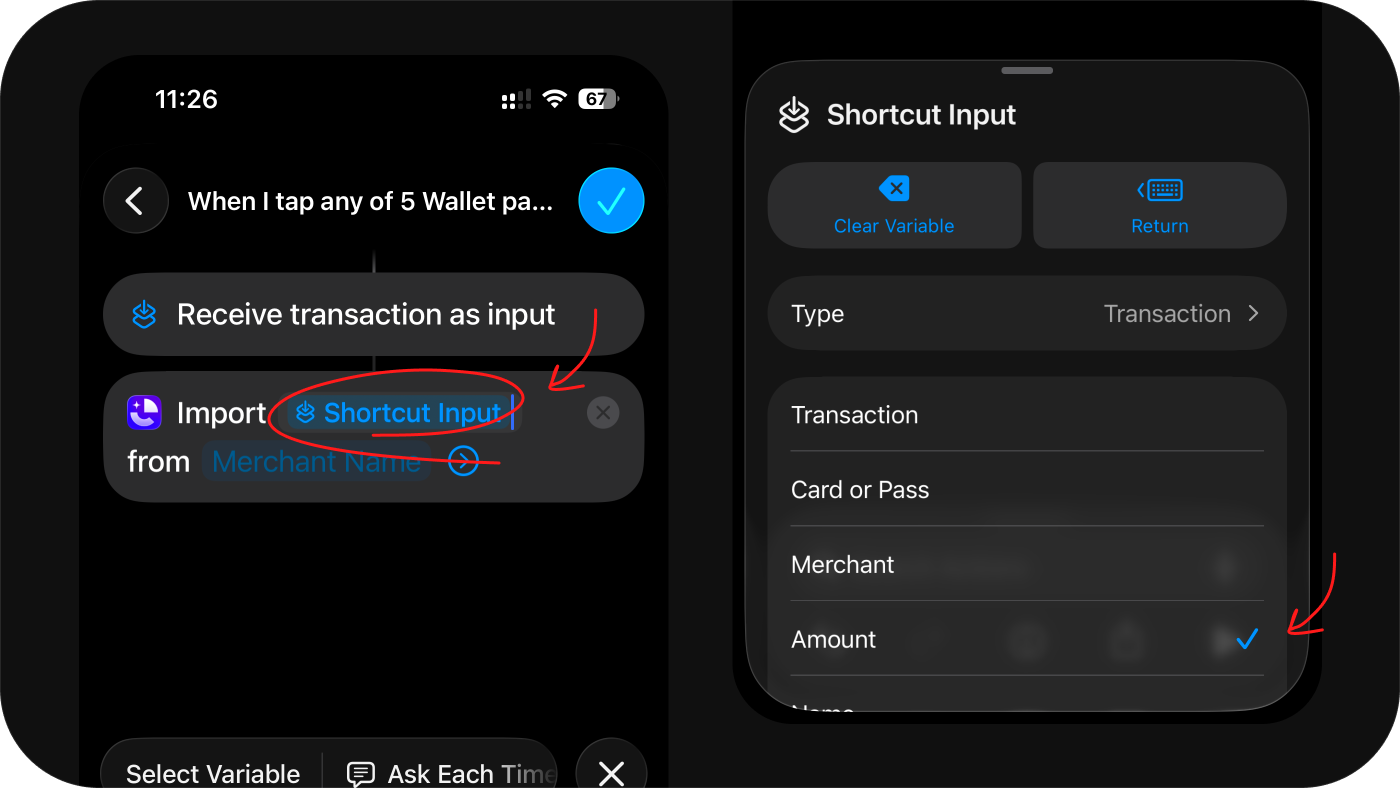
Step 8: Tap “Done” to save
Tap Done in the top-right corner. Your automation is live.
After setup, make a small real payment with a selected card and check that Expensa saved the expected merchant, amount and date. A missing Wallet trigger or a failed import still needs your attention.
Expensa for iPhone Track spending automatically Apple Pay capture, voice entry and budgets. Free to download on the App Store. Get the app
Set the peso as your base currency
In Expensa, go to Settings → Default Currency and pick PHP (₱). Every report, budget, and chart will show pesos. If you pay in another currency — a USD subscription, shopping abroad, an OFW managing money across two countries — Expensa stores the original amount and converts it to PHP at the live rate, so your totals always make sense.
Let categories sort themselves
Expensa recognizes merchants over time. Assign “Jollibee” to Food & Drinks once and every future tap there is categorized automatically; on the premium plan, AI categorizes new merchants for you the moment the transaction arrives. You can also get a notification if a tap pushes a category over its budget — before the next tap, not at the end of the month.
Frequently asked questions
Is Apple Pay available in the Philippines? Yes. Apple Pay officially launched in the Philippines on August 4, 2026. You can add debit and credit cards from UnionBank, GoTyme Bank, Metrobank, and Chinabank to Apple Wallet and pay with iPhone or Apple Watch anywhere contactless payments are accepted.
Does BDO or BPI support Apple Pay in the Philippines? Not at launch. BPI has completed card tokenization and is expected to activate Apple Pay support shortly. BDO and other banks have not announced a date yet. Until your bank joins, you can still track those card expenses in Expensa manually or by importing your bank’s CSV statement.
Does Apple Pay work with GCash or Maya? No. GCash, Maya, and QR Ph payments don’t go through Apple Pay, so they can’t be added to Apple Wallet and won’t trigger the Shortcuts automation. Log those expenses manually or import them via CSV.
Does the automation capture Apple Pay purchases in apps like Shopee or foodpanda? It depends on the iOS version and whether the Wallet transaction trigger or a Wallet notification appears for that payment. Verify a real purchase before relying on automatic capture. Typing a card number is not an Apple Pay payment.
Do I need to keep Expensa open for auto-tracking to work? No. The import action can run in the background. Expensa sends a confirmation when an eligible payment triggered the shortcut and app notifications are allowed.
For a deeper look at what iPhone can and can’t export about your payments, see the Wallet history and export guide. If the setup does not behave as expected, check the troubleshooting section in the iOS 26 and earlier setup guide or the iOS 27 setup guide.
Keep reading
View all- 5 Expense Tracker Apps for iPhone Without Bank Linking Compare Expensa, Monefy, Money Manager, Spendee and YNAB for iPhone expense tracking without a bank connection: entry, budgets, sharing and cost.
- Apple Pay in India: Supported Cards, UPI and How to Track Spending Apple Pay launched in India on 30 September 2026. See supported Axis Bank cards, UPI and RuPay limits, setup steps, and how to track spending in INR.
- Set Up Apple Pay Expense Tracking in Expensa on iOS 27 Set up Expensa Wallet Sync on iOS 27 or later: add the shared shortcut, approve its actions, and enable the Wallet notification automation.
- Import a Receipt Screenshot into Expensa with iPhone Back Tap Set up Expensa Scan Receipt in Shortcuts, assign it to iPhone Back Tap, and turn an onscreen receipt into an expense without opening the app.
- Monarch Money vs Rocket Money: Budgeting, Subscriptions and Cost Compare Monarch Money and Rocket Money in 2026 by budget tools, subscription help and cost. See where Expensa fits if you don't want a bank connection.
- Best Free Expense Tracker Apps for iPhone: Features and Limits Compare Dime, Monefy, Spendee, Wallet and Expensa by what stays free: entry, budgets, account limits, Apple Pay tracking and export.
Stop tracking.
Start knowing.
Capture eligible Apple Pay purchases after setup, add expenses by voice and see what remains in your budget.
Download for iPhone